Tuesday, September 24, 2013

Where is GoogleBot?

http://www.gravitateonline.com/site-development/googlebot-engage

Due the importance of SEO and the relevance of Google search engine is not uncommon to hear this question in a meeting: From where GoogleBot crawler crawls our site? Design and investment decisions are made based on the answer to that question. Is a popular believe that Google Inc. crawler GoogleBot resides at California, USA but I'm afraid this is not accurate.

I've discovered this:

- GoogleBot is not only a bunch of servers (obviously). It is a very big distributed cluster with hundreds of machines. My site is indexed from more than 900 different Google IP addresses every day.
- I've identified 7 different GoogleBot crawling clusters.
- They seem to connect to my site from 6 different locations.
- Almost all of them are in USA but one location is Europe.

Origin IP

With access to your web site log files you can "grep" the string "http://www.google.com/bot.html" on the referrer field and find out which IP GoogleBot is using when it pays you a visit. There are some other malicious crawlers that fake their referrer as GoogleBot but they're easily spotted. Google Inc. owns the Autonomous System AS15169 and its connections come from there. In my case I got connections from those IP ranges below, during the last six months:

 66.249.72.xxx 
 66.249.73.xxx
 66.249.74.xxx
 66.249.75.xxx
 66.249.76.xxx
 66.249.78.xxx
 66.249.80.xxx
 66.249.81.xxx
 66.249.82.xxx
 66.249.83.xxx
 66.249.84.xxx
 66.249.85.xxx

Google advises that the way to find out if an Origin IP belongs to GoogleBot is to do a reverse DNS resolution and look for crawl-xx-xxx-xx-xxx.googlebot.com in the result.
Applying that the final list to work with is:

66.249.72.xxx 1.72.249.66.in-addr.arpa domain name pointer crawl-66-249-72-1.googlebot.com.
66.249.73.xxx 1.73.249.66.in-addr.arpa domain name pointer crawl-66-249-73-1.googlebot.com.
66.249.74.xxx 1.74.249.66.in-addr.arpa domain name pointer crawl-66-249-74-1.googlebot.com.
66.249.75.xxx 1.75.249.66.in-addr.arpa domain name pointer crawl-66-249-75-1.googlebot.com.
66.249.76.xxx 1.76.249.66.in-addr.arpa domain name pointer crawl-66-249-76-1.googlebot.com.
66.249.77.xxx 1.77.249.66.in-addr.arpa domain name pointer crawl-66-249-77-1.googlebot.com.
66.249.78.xxx 1.78.249.66.in-addr.arpa domain name pointer crawl-66-249-78-1.googlebot.com.

I don't take into account the networks 66.249.80.xxx, 66.249.81.xxx, etc. because seem to be used by Feedfetcher-Google and Mediapartners-Google (AdSense) and that's out of the scope of this post.

Latency = Hint

Nowadays is tricky to know where a IP is located when it belongs to a big network. Anycast routing method (like the one used with the popular Google Public DNS Service 8.8.8.8) becomes a challenge if you want to be certain. Google Inc. IP addresses are administrative located at Mountain View, California and without any further analysis this is the conclusion you will get.

But when I ping those networks from my server (Paris, France), write the obtained round trip times on a table and give a look to the Google Data Centers map... One can guess and approximated geographic location for those GoogleBot clusters:

IPv4 Network   Ping Round Trip   Location
 66.249.72.2 
92 ms 
USA East Coast ?
 66.249.73.2 
114 ms 
USA Mid West ?
 66.249.74.2 
152 ms 
 USA West Coast ? 
 66.249.75.2 
96 ms 
USA East Coast ?
 66.249.76.2  (Not active since 
2013-05-29)
Unknown
 66.249.77.2 
274 ms 
Unknown
(Not USA nor Europe ?)
 66.249.78.2 
13 ms 
Dublin, Ireland ? 

Round Trip milliseconds is not an accurate method to place a system on the map but the answer I'm trying to answer here is whether GoogleBot is at California or not. As you see, there is not a short answer but at least we know that it is spread around different locations within the States and Europe.

Tuesday, September 17, 2013

Using Varnish Proxy Cache with Amazon Web Service ELB Elastic Load Balancer


using-varnish-proxy-cache-with-amazon-web-services-elastic-load-balancer-elb


Update 19-Feb-2014 ! Elastic Load Balancing Announces Cross-Zone Load Balancing
Maybe this new option makes unnecessary my workaround. Anyone can confirm?


The problem
When putting a Varnish cache in front of an AWS EC2 Elastic Load Balancer weird things happen like: Not getting any traffic to your instance or getting traffic to just one of your instances (in case of Multi Availability Zone (AZ) deployment).

Why?
This has to do with how the ELB is designed and how Varnish is designed. Is not a flaw. Let's call it: Incompatibility.
When you deploy a Elastic Load Balancer into EC2 you access it through a CNAME DNS address. When you deploy an ELB in front of multiple instances in multiple Availability Zones that CNAME is not a DNS address, is many.

Example:
$ dig www.netflix.com

; <<>> DiG 9.8.1-P1 <<>> www.netflix.com

;; global options: +cmd
;; Got answer:
;; ->>HEADER<<- opcode: QUERY, status: NOERROR, id: 64502
;; flags: qr rd ra; QUERY: 1, ANSWER: 4, AUTHORITY: 0, ADDITIONAL: 0

;; QUESTION SECTION:

;www.netflix.com. IN A

;; ANSWER SECTION:

www.netflix.com. 300 IN CNAME dualstack.wwwservice--frontend-san-756424683.us-east-1.elb.amazonaws.com.
dualstack.wwwservice--frontend-san-756424683.us-east-1.elb.amazonaws.com. 60 IN A 184.73.248.59
dualstack.wwwservice--frontend-san-756424683.us-east-1.elb.amazonaws.com. 60 IN A 107.22.235.237
dualstack.wwwservice--frontend-san-756424683.us-east-1.elb.amazonaws.com. 60 IN A 184.73.252.179


As you can see, the answer for this CNAME DNS resolution for Netflix's ELB are 3 different IP addresses. Is up to the application (usually your Internet Web Browser) to decide which to use. Different clients will chose different IPs (they are not always sorted the same way) and this will balance the traffic among different AZs.
The bottom line is that your ELB in real life are multiple instances in multiple AZs and the CNAME mechanism is the method used to balance them.

But Varnish behaves different
And when you specify a CNAME as a Varnish backend server (the destination server where Varnish requests will be send to) it will translate that into only one IP. Despite the amount of IP addresses associated with that CNAME. It will only chose one and use that one for all its activity. Therefore Varnish and AWS ELB are not compatible. (Would you like to suggest a change?)

The Solution
Put a NGINX web server between Varnish and the ELB, acting as a load balancer. I know, not elegant. but works and once is in place no maintenance is needed and the process overhead for the Varnish server is minimum.

Setup
- Varnish server listening on TCP port 80 and configured to send all its requests to 127.0.0.1:8080
- NGINX server listening on TCP port 127.0.0.1:8080 and sending all its requests to our EC2 ELB.

Basic configuration (using AWS EC2 AMI Linux)

yum update
reboot

yum install varnish
yum install nginx

chkconfig varnish on
chkconfig nginx on

Varnish

vim /etc/sysconfig/varnish

Locate the line:
VARNISH_LISTEN_PORT=6081
and change if for
VARNISH_LISTEN_PORT=80

vim /etc/varnish/default.vcl

Locate the backend default configuration and change port from 80 to 8080
backend default {
  .host = "127.0.0.1";
  .port = "8080";
}


NGINX

vim /etc/nginx/nginx.conf

Get rid of the default configuration file and use this example:
worker_processes  1;

events {
    worker_connections  1024;
}

http {
    include       mime.types;
    default_type  application/octet-stream;

    keepalive_timeout  65;

    server_tokens off;

server {
    listen       localhost:8080;

    location / {
     ### Insert below your ELB DNS Name leaving the semicolon at the end of the line
     proxy_pass  http://<<<<Insert-here-your-ELB-DNS-Name>>>>;
     proxy_set_header Host $http_host;

   }
}

}


Restart
service varnish restart
service nginx restart

And voila! Comments and improvement are welcome.


Thanks to
Jordi and Àlex for your help!


Update 19-Feb-2014 ! Elastic Load Balancing Announces Cross-Zone Load Balancing
Maybe this new option makes unnecessary my workaround. Anyone can confirm?


Thursday, April 18, 2013

AWS Diagrams Adobe Illustrator Object Collection: First Release


aws-diagrams-ec2-adobe-illustrator-collection-first-release-logo

Due to popular demand I've decided to release the collection of vector graphics objects I use to draw Amazon Web Services architecture diagrams. This is the first release and more are on the way. This is an Adobe Illustrator CS5 (.AI) file. I've obtained this artwork from the original AWS Architecture PDF files published at the AWS Architecture Center.
You can use Adobe Illustrator to open this file and to create your diagrams or you can export these objects to SVG format and use GNU software to work with them. The file has been saved in "PDF Compatibility Mode" so plenty of utilities can import it without the need of using Adobe Illustrator (With Inkscape for instance).

Disclaimer:
- I provide this content as it is. No further support of any kind can be provided. I'd love to receive your comments and suggestions but I can not help you drawing diagrams.
- As far as I know this content is not copyrighted (1). Feel free to use it.
- Those designs have been created by a brilliant and extraordinary person that works in AWS. I'm just a channel of communication here. All credits should go to him.

Download link: http://bit.ly/17rkyCo


aws-diagrams-ec2-adobe-illustrator-collection-first-release-thumbnail


And that's it. Comments are welcome. Have fun and enjoy!

Tuesday, March 5, 2013

Monday, January 14, 2013

Backing up Ubuntu Using Deja Dup and Amazon Web Services S3

deja-dup-duplicity-ubuntu-aws-s3-backup-logo

Ubuntu includes a nice backup tool called Déjà Dup based on Duplicity that gives us just the options we need to handle our home backups. With just a couple of settings we can use Amazon Web Services S3 as device for those backups.


S3 Bucket and Credentials

If none specified, Deja-Dup will automatically create a bucket in S3 using our credentials. This will happen at the default AWS Region (North Virginia). If you need your backups placed elsewhere (a closer region for example) you should manually create a S3 bucket for that purpose.

You need to create an AWS IAM user with S3 privileges and export its credentials to be used with Deja-Dup.


Install Additional Packages

By default the Ubuntu backup utility does't recognize AWS S3 as Backup Storage. We need these additional packages:


# sudo apt-get install python-boto

# sudo apt-get install python-cloudfiles


S3 configuration

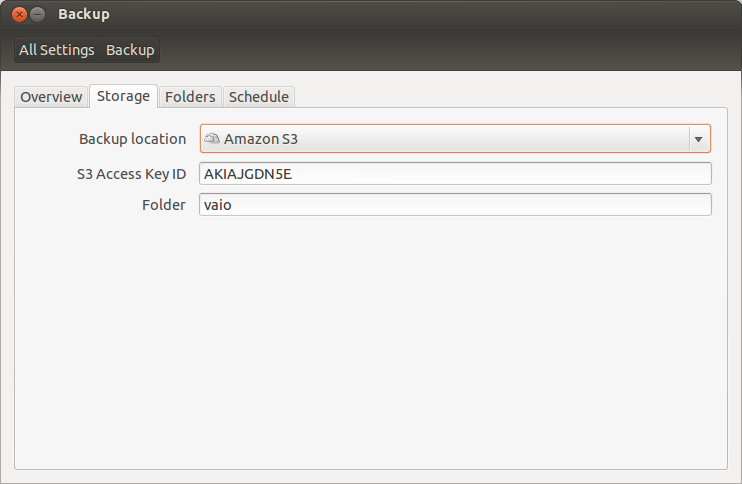
Open Déjà-Dup (Backup) and select the Storage menu. If the additional packages are correctly installed you should have "Amazon S3" as an available Backup Location. Select it and type your S3 Key and the folder your like to store your laptop backup.

blog-domenech-org-aws-s3-ubuntu-backup-deja-dup

You should see something like the capture above. Close the Backup utility.


Bucket Configuration

To tell Déjà-Dup the bucket name we want to use we need dconf. Execute dconf or install it if needed (sudo apt-get install dconf-tools).

Access to  / org / gnome / deja-dup / s3  folder:

blog-domenech-org-aws-s3-ubuntu-backup-deja-dup-dconf

Substitute the random generated Deja-Dup bucket name by yours and close dconf.


Backup Launch

Start again Deja-Dup and launch your backup. A pop-up window will appear asking you for the S3 Secret Access Key. My suggestion is to select to remember those credentials to avoid the need of typing them every time.

blog-domenech-org-amazon-web-services-ubuntu-backup-deja-dup-connect-to-s3

And the rest of the backup process is standard: Pop-up window asking you for a password to encrypt the backup files, scan progress window, etc.
I suggest you to check after a successful backup whether the duplicity files are in the expected S3 Bucket or not. And pay attention to the "Folders to Ignore" Backup setting to avoid copying unnecessary files. S3 is cheap but is not free.


Thursday, December 27, 2012

¿Cómo ver Netflix en España?


Este popular proveedor de video on-demand no se encuentra disponible en nuestro país y su página web se negará a registrarnos a su servicio. Actualmente hay un método para conseguir registrarnos a Netflix desde aquí y disfrutar de su contenido utilizando UnBlockUS. UnBlockUS nos ofrece una semana de prueba gratuita y luego su coste es de $4,99/mes. Netflix nos ofrece un mes de prueba gratuita y luego su coste es de $7,99/mes. También podemos utilizar nuestro PC Ubuntu como periférico compatible Netflix utilizando PPA for Netflix Desktop. Esta utilidad es gratuita.

Pasos:

- En la página principal de UnBlockUS accedemos a su oferta de prueba introduciendo nuestra dirección de correo.

- Luego configuramos nuestro cliente DNS para que utilice sus servidores de DNS. Nuestro /etc/resolv.conf debe quedar así:

nameserver 208.122.23.22
nameserver 208.122.23.23

O si utilizamos DHCP y la consola gráfica, así:


- Nos autenticamos (Log In) y accedemos a su página de ayuda para acceder a Netflix. Es importante destacar que el proceso de creación de nuestra cuenta en Netflix lo haremos desde esta ayuda entrando en http://join-us.netflix.com/ Esta página no funcionará si no hemos realizado los anteriores pasos correctamente.

- Nos damos de alta en Netflix.

- Instalamos el cliente de Netflix siguiendo esta ayuda. Este cliente es una adaptación para Wine del cliente para Microsoft Windows. Los pasos principales son:

sudo apt-add-repository ppa:ehoover/compholio
sudo apt-get update
sudo apt-get install netflix-desktop

- Desde Inicio de Ubuntu tecleamos Netflix y ejecutamos la aplicación. En la primera ejecución Wine descargará otros componentes necesarios. Los errores en esta fase son comunes. Ignorar y repetir.

- Nos autenticamos en Netflix y listo.


Consideraciones adicionales:

Debemos considerar UnBlockUS como un servicio de proxy como otros servicios similares que existen para acceder a proveedores de contenido que solo funcionan con una IP origen americana. Pero tiene la peculiaridad que su método de configuración consiste en delegar a ellos toda nuestra resolución DNS. Una vez nuestro cliente lanza una petición de resolución contra sus servidores, estos deciden si se trata de un servicio del cual quieren hacer proxy o no. En caso negativo los servidores DNS nos devuelven la IP auténtica sin cambios y nuestro ordenador accede a ese contenido sin utilizar la infraestructura de UnBlockUS. Y solo en el caso de ciertos servicios (Netflix, Vudu y Hudu Plus) sus servidores DNS "falsean" la resolución y nos devuelven las IPs de los Proxy de UnBlockUS. Este funcionamiento se puede comprar con un simple dig:

Primero la resolución estandard usando un servidor de DNS público:

# dig netflix.com A @8.8.8.8

; <<>> DiG 9.8.1-P1 <<>> netflix.com A @8.8.8.8
;; global options: +cmd
;; Got answer:
;; ->>HEADER<<- opcode: QUERY, status: NOERROR, id: 3635
;; flags: qr rd ra; QUERY: 1, ANSWER: 1, AUTHORITY: 0, ADDITIONAL: 0

;; QUESTION SECTION:
;netflix.com. IN A

;; ANSWER SECTION:
netflix.com. 3 IN A 69.53.236.17

;; Query time: 54 msec
;; SERVER: 8.8.8.8#53(8.8.8.8)
;; WHEN: Thu Dec 27 17:19:36 2012
;; MSG SIZE  rcvd: 45

Y luego utilizando el servidor de DNS de UnBlockUS:

# dig netflix.com A @208.122.23.22 

; <<>> DiG 9.8.1-P1 <<>> netflix.com A @208.122.23.22
;; global options: +cmd
;; Got answer:
;; ->>HEADER<<- opcode: QUERY, status: NOERROR, id: 9078
;; flags: qr aa rd ra; QUERY: 1, ANSWER: 6, AUTHORITY: 0, ADDITIONAL: 0

;; QUESTION SECTION:
;netflix.com. IN A

;; ANSWER SECTION:
netflix.com. 180 IN A 173.208.170.14
netflix.com. 180 IN A 173.230.240.197
netflix.com. 180 IN A 204.12.200.14
netflix.com. 180 IN A 67.216.222.14
netflix.com. 180 IN A 147.255.171.14
netflix.com. 180 IN A 147.255.227.14

;; Query time: 80 msec
;; SERVER: 208.122.23.22#53(208.122.23.22)
;; WHEN: Thu Dec 27 17:20:49 2012
;; MSG SIZE  rcvd: 125

Es una solución inteligente pero arroja dudas en cuanto a la privacidad. En una configuración como esta UnBlockUS tiene visibilidad de todas nuestras peticiones DNS y puede decidir cuales altera y cuales no. Si utilizamos este servicio para acceder a streaming desde un periférico tipo Roku o similar este detalle no tiene la menor importancia pero si utilizamos nuestro ordenador personal o tablet la cosa cambia. A discreción del lector.