Showing posts with label bucket. Show all posts

Monday, January 14, 2013

Backing up Ubuntu Using Deja Dup and Amazon Web Services S3

deja-dup-duplicity-ubuntu-aws-s3-backup-logo

Ubuntu includes a nice backup tool called Déjà Dup based on Duplicity that gives us just the options we need to handle our home backups. With just a couple of settings we can use Amazon Web Services S3 as device for those backups.


S3 Bucket and Credentials

If none specified, Deja-Dup will automatically create a bucket in S3 using our credentials. This will happen at the default AWS Region (North Virginia). If you need your backups placed elsewhere (a closer region for example) you should manually create a S3 bucket for that purpose.

You need to create an AWS IAM user with S3 privileges and export its credentials to be used with Deja-Dup.


Install Additional Packages

By default the Ubuntu backup utility does't recognize AWS S3 as Backup Storage. We need these additional packages:


# sudo apt-get install python-boto

# sudo apt-get install python-cloudfiles


S3 configuration

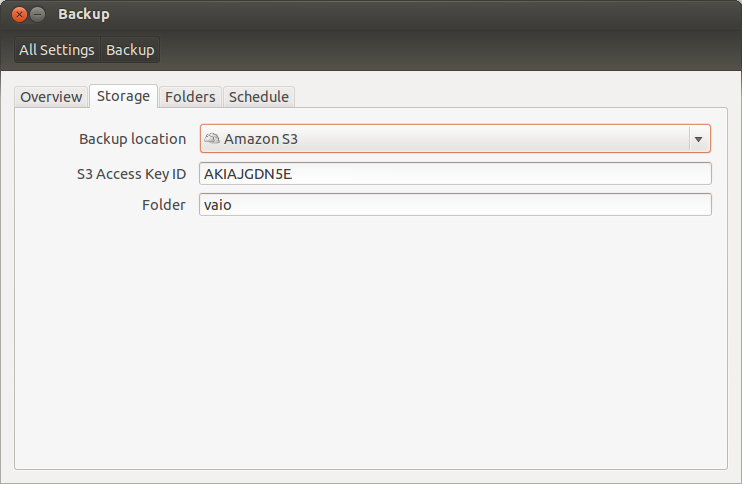
Open Déjà-Dup (Backup) and select the Storage menu. If the additional packages are correctly installed you should have "Amazon S3" as an available Backup Location. Select it and type your S3 Key and the folder your like to store your laptop backup.
blog-domenech-org-aws-s3-ubuntu-backup-deja-dup

You should see something like the capture above. Close the Backup utility.


Bucket Configuration

To tell Déjà-Dup the bucket name we want to use we need dconf. Execute dconf or install it if needed (sudo apt-get install dconf-tools).

Access to  / org / gnome / deja-dup / s3  folder:

blog-domenech-org-aws-s3-ubuntu-backup-deja-dup-dconf

Substitute the random generated Deja-Dup bucket name by yours and close dconf.


Backup Launch

Start again Deja-Dup and launch your backup. A pop-up window will appear asking you for the S3 Secret Access Key. My suggestion is to select to remember those credentials to avoid the need of typing them every time.

blog-domenech-org-amazon-web-services-ubuntu-backup-deja-dup-connect-to-s3

And the rest of the backup process is standard: Pop-up window asking you for a password to encrypt the backup files, scan progress window, etc.
I suggest you to check after a successful backup whether the duplicity files are in the expected S3 Bucket or not. And pay attention to the "Folders to Ignore" Backup setting to avoid copying unnecessary files. S3 is cheap but is not free.


Monday, October 29, 2012

Using AWS S3 with s3cmd

Our goal is to use a simple command line utility to access our S3 resources from our laptop Linux.

First, you should create a IAM User with permissions just to access your S3 Buckets. There are several options to configure an IAM User but my suggestion is to create an admin user with only access to S3. The process is similar to the Read Only User we have created before for Newvem but this time selecting the Policy Template for "Amazon S3 Full Access". This way we are sure that anything that happens to this user will only affect our S3 Buckets.

In this example I will download all the log files that have been automatically created by AWS Cloudfront during the experiment of exploring the amount of CloudFront Edge Locations that exist today and delete those files afterwards.

- Install s3cmd

$ sudo apt-get install s3cmd 

- Configure:

$ s3cmd --configure
Enter new values or accept defaults in brackets with Enter.
Refer to user manual for detailed description of all options.

Access key and Secret key are your identifiers for Amazon S3
Access Key: (Access Key for the admin S3 User we have created before)
Secret Key: (Seccret Key for the admin S3 User we have created before)

Encryption password is used to protect your files from reading
by unauthorized persons while in transfer to S3
Encryption password: (your-password)
Path to GPG program [/usr/bin/gpg]:

When using secure HTTPS protocol all communication with Amazon S3
servers is protected from 3rd party eavesdropping. This method is
slower than plain HTTP and can't be used if you're behind a proxy
Use HTTPS protocol [No]:

On some networks all internet access must go through a HTTP proxy.
Try setting it here if you can't conect to S3 directly
HTTP Proxy server name:

New settings:
  Access Key: ***********************
  Secret Key: ***************************
  Encryption password: ***********
  Path to GPG program: /usr/bin/gpg
  Use HTTPS protocol: False
  HTTP Proxy server name:
  HTTP Proxy server port: 0

Test access with supplied credentials? [Y/n] y
Please wait...
Success. Your access key and secret key worked fine :-)

Now verifying that encryption works...
Success. Encryption and decryption worked fine :-)

Save settings? [y/N] y
Configuration saved to '/home/joan/.s3cfg'

- Listing Buckets:

$ s3cmd ls 

- Listing Bucket contents (folders):

$ s3cmd ls s3://Bucket-Name 

- Listing Bucket contents (files):

$ s3cmd ls s3://Bucket-Name/Folder-Name 

- Download all folder content:

$ s3cmd get s3://Bucket-Name/Folder-Name/* 

- Delete all folder content:

$ s3cmd del s3://Bucket-Name/Folder-Name/* 

Note: This command last will delete all files AND the folder.

Note: Keep in mind that any access to AWS S3 becomes a GET, PUT, POST or LIST action and some cost may occur. Refer to Amazon Web Services S3 Pricing for details.