My blog's Favicon.ico image is a close-up of a Lego Technic Gear-14 renderization created by Ernst Martin Witte using Pov-Ray. This one, to be precise:
This is my tiny tribute to this extraordinary toy: Lego Technic. I'm convinced that this toy played a role on my early development and further interest in Physics, Logic and Computers. It was my favorite game until something called Commodore Vic-20 came into play when I was 13 year old. I strongly recommend to parents to buy Lego products to your kids and introduce them to Lego Technic when ready.
A bit more Lego Pov-Ray art:
Monday, November 5, 2012
Saturday, November 3, 2012
AWS EC2 Auto Scaling: Basic Configuration
Our goal: Create an Auto Scaling EC2 Group in a single Availability Zone and use a HTTP status page as a Health Monitor for our Load Balancer and the Auto Scaling group instances.
This exercise will show us some Auto Scaling basics and will be useful to understand the concepts beneath but the Auto Scaling Group will not automatically "scale" responding to external influence like Average CPU Usage or Total Apache Connections (This aspect is covered in this post: AWS EC2 Auto Scaling: External CloudWatch Metric). With the Auto Scaling configuration described here, we will obtain a web server cluster that can be increased and decreased in members with a simple Auto Scaling API call and we will transfer the monitoring role to the ELB to automatically replace failed EC2 instances or web servers.
What we need for the exercise:
This exercise assumes you have previous experience with EC2 Instances, Security Groups, Custom AMIs and EC2 Load Balancers.
- An empty ELB.
- A custom AMI with HTTP server installed.
- A custom Test Web Page called "ping.html".
- A EC2 Keys Pair to use to access our instances.
- A EC2 Security Group.
- Auto Scaling API. If you need help configuring the access to the Auto Scaling API check this post.
Preparation:
Is important to be sure that all the ingredients are working as expected. Auto Scaling could be difficult to debug and nasty situations may occur like: A group of instances starting while you are away or a new instance starting and stoping every 20 seconds with bad billing consequences (AWS will charge you a full hour for any started instance, despite it has been only one minute running).
I strongly suggest to manually test your setup before create a Auto Scaling configuration.
- Create your Key Pair (In my example "juankeys").
- Deploy an ELB (In my example is named "elb-prueba") in your default AZ ("a"). Configure the ELB to use your custom /ping.html page as Instance Health Monitor. You should see something like this:
- Create a Security Group for your Web Server instances (In my example "wed-servers"). Add to this Security Group the ELB Security Group for Port 80. It should look like the capture below. In this example this SG allows to Ping and TCP access from my home to the Instances AND allows access to port 80 to the connections originated in my Load Balancers (amazon-elb-sg). The Web Server port 80 is not open to Internet, is only open to the ELB.
- Deploy a EC2 Instance using the previous created Key Pair and Security Group. Install a HTTP server and be sure it is configured to start automatically. Create a Test Page called /ping.html at the web sever root folder. This text page can print out ant text you like. Its only mission is to be present. A HTTP 200 is OK and anything else is KO.
- Create your Custom AMI from the previous created temporal instance. Terminate the previous created temporal instance when finished.
- Deploy a new instance using the recently created AMI (In my example "ami-1ceb5075") to test it. Check if the HTTP Server starts automatically.
- Manually add the recently created instance under the ELB. Verify that the Load Balancer Check works and it gives you the Status "In Service" for this instance. Verify that the /ping.html page can be accessed from Internet using a browser and the ELB public DNS name ("http://(you-ELB-DNS-name)/ping.html").
- Once everything checks OK, remove the instance from the ELB and Terminate the instance.
Definition:
| # as-create-launch-config config-prueba --image-id ami-1ceb5075 --instance-type t1.micro --monitoring-disabled --group web-servers --key juankeys OK-Created launch config |
| # as-create-auto-scaling-group grupo-prueba --launch-configuration config-prueba --availability-zones us-east-1a --min-size 0 --max-size 4 --load-balancers elb-prueba --health-check-type ELB --grace-period 120 OK-Created AutoScalingGroup |
With as-create-launch-config we define the Instance configuration we will be using in our Auto Scaling Group: Launch config name, AMI ID, Intance Type, Advanced Monitoring (1 minute monitoring) disabled, Security Group and Key Pair to use.
With as-create-auto-scaling-group we define the group itself: Group Name, Launch Confing to use, AZs to deploy in, the minimum number of running instances that our application needs to run, the maximum number of instances we desire to scale up to, ELB name, the Health Check type set to ELB (by default is the EC2 System Status) and the grace period of time grant to a instance before is checked after launch (in seconds).
Note: By default all the API calls are sent to the us-east-1 Region (N.Virginia).
Describe:
| # as-describe-launch-configs --headers LAUNCH-CONFIG NAME IMAGE-ID TYPE LAUNCH-CONFIG config-prueba ami-1ceb5075 t1.micro |
| # as-describe-auto-scaling-groups --headers
AUTO-SCALING-GROUP GROUP-NAME LAUNCH-CONFIG AVAILABILITY-ZONES LOAD-BALANCERS MIN-SIZE MAX-SIZE DESIRED-CAPACITY TERMINATION-POLICIES
AUTO-SCALING-GROUP grupo-prueba config-prueba us-east-1a elb-prueba 0 4 0 Default
|
We use "as-describe-" commands to read the result of our last configuration. Special attention to as-describe-auto-scaling-instances:
| # as-describe-auto-scaling-instances --headers No instances found |
Bring it to Production:
Let's say to AS that minimum is now 1 and describe the configuration:
| # as-update-auto-scaling-group grupo-prueba --min-size 1 OK-Updated AutoScalingGroup # as-describe-auto-scaling-groups --headers AUTO-SCALING-GROUP GROUP-NAME LAUNCH-CONFIG AVAILABILITY-ZONES LOAD-BALANCERS MIN-SIZE MAX-SIZE DESIRED-CAPACITY TERMINATION-POLICIES AUTO-SCALING-GROUP grupo-prueba config-prueba us-east-1a elb-prueba 1 4 1 Default INSTANCE INSTANCE-ID AVAILABILITY-ZONE STATE STATUS LAUNCH-CONFIG INSTANCE i-5bb9e427 us-east-1a Pending Healthy config-prueba |
Notice that now Minimum is 1 in the AS configuration and now there is a new instance under our AS Group ("i-5bb9e427" in this example). This instance has been automatically deployed by AS to match the desired number of healthy instances for our application. Notice the "Pending" status that means that it is still in the initialization process. We can follow this process with as-describe-auto-scaling-instances:
Now the recently deployed instance is in service. That means that its Health Check (ELB ping.html test page) verifies OK. If you open the AWS Console and read the current ELB "Instances" Tab, the new instance ID should be there automatically added to the Load Balancer and your application up and running.
Common problem scenarios:
- If you observe that the new instances are constantly Deployed and Terminated by AS this probably means that ping.html page fails. Stop the experiment with "as-update-auto-scaling-group grupo-prueba --min-size 0" and verify your components.
- If your web server and test page is verified OK but the AS is still Deploying and Terminating the instances without a chance to rise to the Healthy status then you should increase the value of "--grace-period" in the AS Group definition to give more time to your AMI to start a initialize its services.
- If the instances start but they fail to automatically be added to the ELB then probably the Instances are deployed in a incorrect Availability Zone. Either correct your AS Launch Configuration or expand the ELB to the rest of AZs in your Region.
| # as-describe-auto-scaling-instances INSTANCE i-5bb9e427 grupo-prueba us-east-1a Pending HEALTHY config-prueba # as-describe-auto-scaling-instances INSTANCE i-5bb9e427 grupo-prueba us-east-1a Pending HEALTHY config-prueba # as-describe-auto-scaling-instances INSTANCE i-5bb9e427 grupo-prueba us-east-1a Pending HEALTHY config-prueba # as-describe-auto-scaling-instances INSTANCE i-5bb9e427 grupo-prueba us-east-1a Pending HEALTHY config-prueba # as-describe-auto-scaling-instances INSTANCE i-5bb9e427 grupo-prueba us-east-1a InService HEALTHY config-prueba # as-describe-auto-scaling-instances INSTANCE i-5bb9e427 grupo-prueba us-east-1a InService HEALTHY config-prueba # as-describe-auto-scaling-instances INSTANCE i-5bb9e427 grupo-prueba us-east-1a InService HEALTHY config-prueba |
Now the recently deployed instance is in service. That means that its Health Check (ELB ping.html test page) verifies OK. If you open the AWS Console and read the current ELB "Instances" Tab, the new instance ID should be there automatically added to the Load Balancer and your application up and running.
Common problem scenarios:
- If you observe that the new instances are constantly Deployed and Terminated by AS this probably means that ping.html page fails. Stop the experiment with "as-update-auto-scaling-group grupo-prueba --min-size 0" and verify your components.
- If your web server and test page is verified OK but the AS is still Deploying and Terminating the instances without a chance to rise to the Healthy status then you should increase the value of "--grace-period" in the AS Group definition to give more time to your AMI to start a initialize its services.
- If the instances start but they fail to automatically be added to the ELB then probably the Instances are deployed in a incorrect Availability Zone. Either correct your AS Launch Configuration or expand the ELB to the rest of AZs in your Region.
Sabotage:
Log-in as root to the recently deployed AS Instance and force it to fail with this command "mv /var/www/html/ping.html /var/www/html/ping.html.KO". You can see at the /var/log/httpd/access_log file that the ELB is looking for the test page and it is failing:
Let's see what happens soon after.
After a while, our initial instance (i-5bb9e427) is declared UNHEALTHY and put to Termination due the Test Page fails several times. At the same time a new instances is deployed (i-3dce9341), tested and aggregated to the ELB to match our "minimum=1" criteria. Auto Scaling (together with ELB) monitors our cluster and any failed instance will be removed and a new one will be launched.
We have learned something here: An instance in an AS environment is volatile. It could disappear at any time because it is Terminated and with the instance its EBS volumes. You have to take that into account when designing your infrastructure. If your web server needs to store some information that you could need later you should save it elsewhere: Cloudwatch, external log server, data base, etc.
Maneuvers:
Changing the minimum number of instances in the AS configuration is a way to change the amount of running instances but there are others.
- We can force the number of running instances by changing the "--desired-capacity" in the AS Group definition:
Log-in as root to the recently deployed AS Instance and force it to fail with this command "mv /var/www/html/ping.html /var/www/html/ping.html.KO". You can see at the /var/log/httpd/access_log file that the ELB is looking for the test page and it is failing:
| - 10.29.36.216 - - [03/Nov/2012:12:23:45 +0000] "GET /ping.html HTTP/1.1" 200 49 "-" "ELB-HealthChecker/1.0" - 10.29.36.216 - - [03/Nov/2012:12:23:51 +0000] "GET /ping.html HTTP/1.1" 200 49 "-" "ELB-HealthChecker/1.0" - 10.29.36.216 - - [03/Nov/2012:12:23:57 +0000] "GET /ping.html HTTP/1.1" 404 286 "-" "ELB-HealthChecker/1.0" - 10.29.36.216 - - [03/Nov/2012:12:24:03 +0000] "GET /ping.html HTTP/1.1" 404 286 "-" "ELB-HealthChecker/1.0" - 10.29.36.216 - - [03/Nov/2012:12:24:09 +0000] "GET /ping.html HTTP/1.1" 404 286 "-" "ELB-HealthChecker/1.0" - 10.29.36.216 - - [03/Nov/2012:12:24:15 +0000] "GET /ping.html HTTP/1.1" 404 286 "-" "ELB-HealthChecker/1.0" |
Let's see what happens soon after.
| # as-describe-auto-scaling-instances INSTANCE i-5bb9e427 grupo-prueba us-east-1a InService HEALTHY config-prueba # as-describe-auto-scaling-instances INSTANCE i-5bb9e427 grupo-prueba us-east-1a InService HEALTHY config-prueba # as-describe-auto-scaling-instances INSTANCE i-5bb9e427 grupo-prueba us-east-1a InService HEALTHY config-prueba # as-describe-auto-scaling-instances INSTANCE i-5bb9e427 grupo-prueba us-east-1a InService UNHEALTHY config-prueba # as-describe-auto-scaling-instances INSTANCE i-5bb9e427 grupo-prueba us-east-1a InService UNHEALTHY config-prueba # as-describe-auto-scaling-instances INSTANCE i-5bb9e427 grupo-prueba us-east-1a Terminating UNHEALTHY config-prueba # as-describe-auto-scaling-instances INSTANCE i-5bb9e427 grupo-prueba us-east-1a Terminating UNHEALTHY config-prueba # as-describe-auto-scaling-instances INSTANCE i-5bb9e427 grupo-prueba us-east-1a Terminating UNHEALTHY config-prueba # as-describe-auto-scaling-instances INSTANCE i-5bb9e427 grupo-prueba us-east-1a Terminating UNHEALTHY config-prueba # as-describe-auto-scaling-instances INSTANCE i-3dce9341 grupo-prueba us-east-1a Pending HEALTHY config-prueba INSTANCE i-5bb9e427 grupo-prueba us-east-1a Terminating UNHEALTHY config-prueba # as-describe-auto-scaling-instances INSTANCE i-3dce9341 grupo-prueba us-east-1a Pending HEALTHY config-prueba INSTANCE i-5bb9e427 grupo-prueba us-east-1a Terminating UNHEALTHY config-prueba # as-describe-auto-scaling-instances INSTANCE i-3dce9341 grupo-prueba us-east-1a Pending HEALTHY config-prueba # as-describe-auto-scaling-instances INSTANCE i-3dce9341 grupo-prueba us-east-1a Pending HEALTHY config-prueba # as-describe-auto-scaling-instances INSTANCE i-3dce9341 grupo-prueba us-east-1a Pending HEALTHY config-prueba # as-describe-auto-scaling-instances INSTANCE i-3dce9341 grupo-prueba us-east-1a InService HEALTHY config-prueba # as-describe-auto-scaling-instances INSTANCE i-3dce9341 grupo-prueba us-east-1a InService HEALTHY config-prueba # as-describe-auto-scaling-instances INSTANCE i-3dce9341 grupo-prueba us-east-1a InService HEALTHY config-prueba |
After a while, our initial instance (i-5bb9e427) is declared UNHEALTHY and put to Termination due the Test Page fails several times. At the same time a new instances is deployed (i-3dce9341), tested and aggregated to the ELB to match our "minimum=1" criteria. Auto Scaling (together with ELB) monitors our cluster and any failed instance will be removed and a new one will be launched.
We have learned something here: An instance in an AS environment is volatile. It could disappear at any time because it is Terminated and with the instance its EBS volumes. You have to take that into account when designing your infrastructure. If your web server needs to store some information that you could need later you should save it elsewhere: Cloudwatch, external log server, data base, etc.
Maneuvers:
Changing the minimum number of instances in the AS configuration is a way to change the amount of running instances but there are others.
- We can force the number of running instances by changing the "--desired-capacity" in the AS Group definition:
| as-update-auto-scaling-group grupo-prueba --desired-capacity X |
- You can scale by Schedule: AWS Scaling by Schedule documentation.
- And you can scale by Policy. This aspect is covered in this post: AWS EC2 Auto Scaling: External CloudWatch Metric.
Cleaning:
You don't want an AS Group doing things while you sleep so I suggest you to delete all your AS configurations after your test is done.
| # as-update-auto-scaling-group grupo-prueba --min-size 0 OK-Updated AutoScalingGroup # as-update-auto-scaling-group grupo-prueba --desired-capacity 0 OK-Updated AutoScalingGroup # as-delete-auto-scaling-group grupo-prueba Are you sure you want to delete this AutoScalingGroup? [Ny]y
OK-Deleted AutoScalingGroup
# as-delete-launch-config config-prueba Are you sure you want to delete this launch configuration? [Ny]y
OK-Deleted launch configuration
# as-describe-auto-scaling-instances No instances found |
Labels:
Amazon Web Services,
API,
Auto Scaling,
AWS,
EC2,
ELB,
HowTo
Friday, November 2, 2012
AWS Cloudwatch Custom Metric for Apache Workers
Our goal: Create two custom metrics to store in Cloudwatch the value "Busy Workers" and "Idle Workers" from our Apache HTTP server.
With this simple example we will learn how to use Cloudwatch to monitor any kind of information generated inside our EC2 instance. Cloudwatch is ready to monitor metrics that can be obtained from the outside (CPU, Network and EBS I/O) but it needs some help to get into our machine.
We need:
- Apache HTTP server installed and running with the module mod_status installed and activated. Here the mod_status documentation.
- Previous knowledge to interact with AWS Cloudwatch monitoring API and a working AWS_CREDENTIAL_FILE. You can use this previous article for help.
Test mod_status configuration:
- Access to the "Apache Server Status" page using a browser. URL: http://(you-web-server-public-DNS)/server-status and you should see something like this:
We will use a shorter output call to make scripting easier. URL: http://(you-web-server-public-DNS)/server-status?auto (The same as before but with "?auto" at the end). The output is like this:
First, we load all the environment variables that could be used in the exercise (and others). We expect to use this script with crontab so the more the better. Then we load SERVER with the instance name obtained from EC2 Instance Metadata to identify this metric into the Cloudwatch cloud. Now we load BUSYWORKERS and IDLEWORKERS with its values obtained from Apache mod_status using a wget call. The command mon-put-data does the magic to insert those two metrics into Cloudwatch.
With our script tested we could easily create a crontab entry to execute it every 5 minutes. Create a crontab entry like this using your script path and name.
Note: Using AWS Cloudwatch may occur in some costs. Visit product pricing page for details.
The best way to find out if our crontab configuration is running is to check /var/log/messages file and watch for the script activity every 5 minutes. Now we have a custom metric extracting monitoring information from our application and storing it in Cloudwatch. You could easily configure alarms and notifications using the AWS Console or use those metrics as trigger for an auto scaling group.
Ah! Remember that all data stored in Cloudwatch is deleted after 15 days.
With this simple example we will learn how to use Cloudwatch to monitor any kind of information generated inside our EC2 instance. Cloudwatch is ready to monitor metrics that can be obtained from the outside (CPU, Network and EBS I/O) but it needs some help to get into our machine.
We need:
- Apache HTTP server installed and running with the module mod_status installed and activated. Here the mod_status documentation.
- Previous knowledge to interact with AWS Cloudwatch monitoring API and a working AWS_CREDENTIAL_FILE. You can use this previous article for help.
Test mod_status configuration:
- Access to the "Apache Server Status" page using a browser. URL: http://(you-web-server-public-DNS)/server-status and you should see something like this:
Apache Server Status for ec2-107-22-47-235.compute-1.amazonaws.com
_____W__........................................................ ................................................................ ................................................................ ................................................................Scoreboard Key: " _" Waiting for Connection, "S" Starting up, "R" Reading Request," W" Sending Reply, "K" Keepalive (read), "D" DNS Lookup," C" Closing connection, "L" Logging, "G" Gracefully finishing," I" Idle cleanup of worker, "." Open slot with no current processPID Key: 1156 in state: _ , 1158 in state: _ , 1159 in state: _ 1160 in state: _ , 1161 in state: _ , 1162 in state: W 1163 in state: _ , 1164 in state: _ , To obtain a full report with current status information you need to use the ExtendedStatus On directive.Apache/2.2.23 (Amazon) Server at ec2-107-22-47-235.compute-1.amazonaws.com Port 80 |
We will use a shorter output call to make scripting easier. URL: http://(you-web-server-public-DNS)/server-status?auto (The same as before but with "?auto" at the end). The output is like this:
BusyWorkers: 1IdleWorkers: 7 Scoreboard: __W_____....................................................................... |
Security Note: For a production environment you should restrict the access to mod_status only to calls accessing the server listening at localhost (127.0.0.1).
The script:
The script:
| #!/bin/bash logger "Apache Status Started" export AWS_CREDENTIAL_FILE=/opt/aws/apitools/mon/credential-file-path.template export AWS_CLOUDWATCH_HOME=/opt/aws/apitools/mon export AWS_IAM_HOME=/opt/aws/apitools/iam export AWS_PATH=/opt/aws export AWS_AUTO_SCALING_HOME=/opt/aws/apitools/as export AWS_ELB_HOME=/opt/aws/apitools/elb export AWS_RDS_HOME=/opt/aws/apitools/rds export EC2_AMITOOL_HOME=/opt/aws/amitools/ec2 export EC2_HOME=/opt/aws/apitools/ec2 export JAVA_HOME=/usr/lib/jvm/jre export PATH=/usr/local/sbin:/usr/local/bin:/sbin:/bin:/usr/sbin:/usr/bin:/opt/aws/bin:/root/bin SERVER=`wget -q -O - http://169.254.169.254/latest/meta-data/instance-id` BUSYWORKERS=`wget -q -O - http://localhost/server-status?auto | grep BusyWorkers | awk '{ print $2 }'` IDLEWORKERS=`wget -q -O - http://localhost/server-status?auto | grep IdleWorkers | awk '{ print $2 }'` /opt/aws/bin/mon-put-data --metric-name httpd-busyworkers --namespace "EC2: HTTPD" --dimensions "InstanceId=$SERVER" --unit Count --value $BUSYWORKERS /opt/aws/bin/mon-put-data --metric-name httpd-idleworkers --namespace "EC2: HTTPD" --dimensions "InstanceId=$SERVER" --unit Count --value $IDLEWORKERS logger "Apache Status Ended with $SERVER $BUSYWORKERS $IDLEWORKERS" |
First, we load all the environment variables that could be used in the exercise (and others). We expect to use this script with crontab so the more the better. Then we load SERVER with the instance name obtained from EC2 Instance Metadata to identify this metric into the Cloudwatch cloud. Now we load BUSYWORKERS and IDLEWORKERS with its values obtained from Apache mod_status using a wget call. The command mon-put-data does the magic to insert those two metrics into Cloudwatch.
Save the script and execute it 3 or 4 times from command line to be sure that it works and to create some results to play with. At your system log you should see something like this:
| # tail /var/log/messages Nov 2 11:10:01 ip-10-29-30-54 root: Apache Status Started Nov 2 11:10:04 ip-10-29-30-54 root: Apache Status Ended with i-87eef4e1 1 7 Nov 2 11:15:01 ip-10-29-30-54 root: Apache Status Started Nov 2 11:15:04 ip-10-29-30-54 root: Apache Status Ended with i-87eef4e1 5 4 Nov 2 11:20:01 ip-10-29-30-54 root: Apache Status Started Nov 2 11:20:04 ip-10-29-30-54 root: Apache Status Ended with i-87eef4e1 5 6 Nov 2 11:25:01 ip-10-29-30-54 root: Apache Status Started Nov 2 11:25:04 ip-10-29-30-54 root: Apache Status Ended with i-87eef4e1 5 7 |
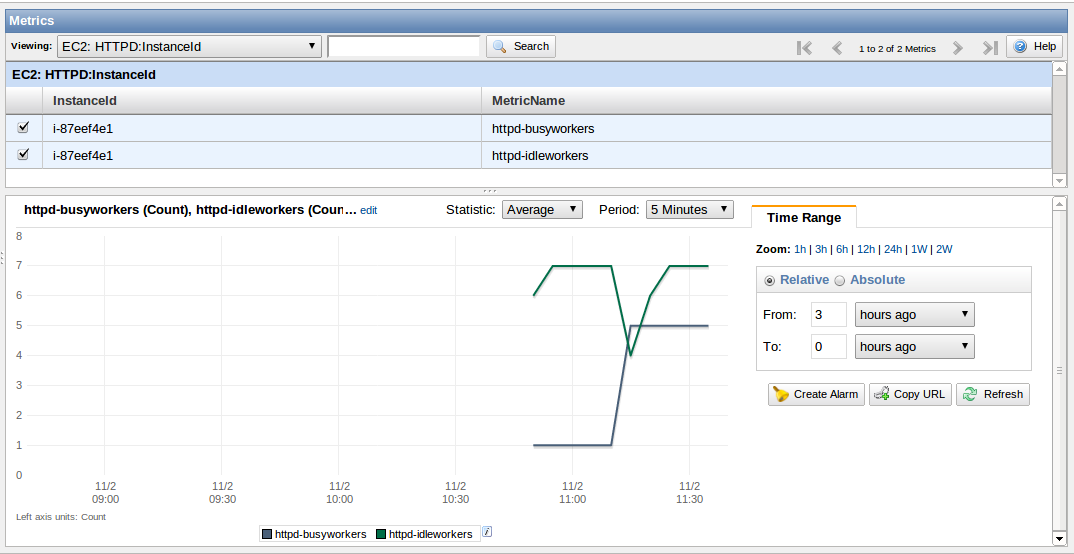
Now we can go to locate our new metrics in Cloudwatch. Open Cloudwatch console. On the left menu "Navigation" click "All Metrics". Then on "Metrics Viewing" select on the pull-down "EC2: HTTPD:IntanceId". Two metrics are shown then. Under your EC2 Instace ID should be present httpd-busyworkers and httpd-idleworkers. Select both metrics and Cloudwatch should create a graphic similar to this:
Note: New metrics in Cloudwatch could take some minutes to consolidate and to be present on the console. If after a while they do not appear, close your AWS Console, open it again and notice whether the value "Cloud Metrics Available" at your Cloudwatch Console Dashboard has increased. Also note that by default all the API interaction are directed to the us-east-1 Region (N.Virginia). Be sure you have selected that region on your console.With our script tested we could easily create a crontab entry to execute it every 5 minutes. Create a crontab entry like this using your script path and name.
| # crontab -l */5 * * * * /root/apache-server-status.sh |
Note: Using AWS Cloudwatch may occur in some costs. Visit product pricing page for details.
The best way to find out if our crontab configuration is running is to check /var/log/messages file and watch for the script activity every 5 minutes. Now we have a custom metric extracting monitoring information from our application and storing it in Cloudwatch. You could easily configure alarms and notifications using the AWS Console or use those metrics as trigger for an auto scaling group.
Ah! Remember that all data stored in Cloudwatch is deleted after 15 days.
Labels:
Amazon Web Services,
Apache,
AWS,
Cloudwatch,
EC2,
HTTPD,
mod_status,
server status
Tuesday, October 30, 2012
AWS API How To
Dealing with the Amazon Web Services API could be frustrating for a beginner. Here you are a small example that will help you to start with.
Some concepts:
The AWS API is a resource that could be accessed from everywhere by an authenticated application to manage all kind of elements into the AWS infrastructure. You can create a new EC2 instance, manage the contents of your S3 Bucket, modify an alarm in Cloudwatch, etc. (the "programmable data center" concept). You could either create your own application to interact with the AWS API (example: create and Smartphone App to Start/Stop your EC2 instances) or you could use someone else application to do that (That's what I do). Amazon Web Services provides a convenient ready-to-use command line tools to use their API.
There are different API methods inside the AWS cloud and different methods of authentication. Currently, the official way to authenticate is using you Access Key and the Secret Key and the Certificate authentication is now obsolete.
By default all API calls are directed to the us-east-1 Region (N.Virgina).
First Step:
Deploy an EC2 instance using the Amazon Linux AMI. The basic AWS Linux AMI includes command line tools to interact with the previous mentioned APIs (and others). You still have the option to download those command line tools and use them from your laptop but to use this preconfigured AMI is the easiest way to start.
This is a list of the current APIs included in EC2 Amazon Linux and its versions:
Credentials for EC2 API command line tools:
(Logged with root) Export the variables AWS_ACCESS_KEY and AWS_SECRET_KEY with your credentials and test the configuration with a simple EC2 command like ec2-desbribe-regions The Access Key and the Secret Key are obtained when you create a new user using the IAM console. You have an example of creating a new user in this article. Please note you will need a user with admin privileges to interact with AWS API.
Credentials for Auto Scaling, Cloudwatch, RDS and ELB API command line tools:
- Create a text file with this name and path: /opt/aws/apitools/mon/credential-file-path.template with the following contents:
- Prevent other users from reading it:
- Export the AWS_CREDENTIAL_FILE variable with the file location:
Some concepts:
The AWS API is a resource that could be accessed from everywhere by an authenticated application to manage all kind of elements into the AWS infrastructure. You can create a new EC2 instance, manage the contents of your S3 Bucket, modify an alarm in Cloudwatch, etc. (the "programmable data center" concept). You could either create your own application to interact with the AWS API (example: create and Smartphone App to Start/Stop your EC2 instances) or you could use someone else application to do that (That's what I do). Amazon Web Services provides a convenient ready-to-use command line tools to use their API.
There are different API methods inside the AWS cloud and different methods of authentication. Currently, the official way to authenticate is using you Access Key and the Secret Key and the Certificate authentication is now obsolete.
By default all API calls are directed to the us-east-1 Region (N.Virgina).
First Step:
Deploy an EC2 instance using the Amazon Linux AMI. The basic AWS Linux AMI includes command line tools to interact with the previous mentioned APIs (and others). You still have the option to download those command line tools and use them from your laptop but to use this preconfigured AMI is the easiest way to start.
This is a list of the current APIs included in EC2 Amazon Linux and its versions:
| $ ssh -i juankeys.pem ec2-user@ec2-50-16-155-40.compute-1.amazonaws.com Last login: Tue Oct 30 10:25:19 2012 from 28.red-28-28-28.adsl.static.ccgg.telefonica.net __| __|_ ) _| ( / Amazon Linux AMI ___|\___|___| https://aws.amazon.com/amazon-linux-ami/2012.09-release-notes/ $ sudo -i # ll /opt/aws/apitools/ total 36 lrwxrwxrwx 1 root root 11 Oct 25 18:51 as -> as-1.0.61.1 drwxr-xr-x 4 root root 4096 Oct 25 18:51 as-1.0.61.1 lrwxrwxrwx 1 root root 22 Oct 25 18:51 cfn-init -> ./cfn-init-1.3-6.amzn1 drwxr-xr-x 5 root root 4096 Mar 24 2012 cfn-init-1.1-0.amzn1 drwxr-xr-x 5 root root 4096 Oct 25 18:51 cfn-init-1.3-6.amzn1 lrwxrwxrwx 1 root root 11 Oct 25 18:51 ec2 -> ec2-1.6.3.0 drwxr-xr-x 4 root root 4096 Oct 25 18:51 ec2-1.6.3.0 lrwxrwxrwx 1 root root 12 Oct 25 18:51 elb -> elb-1.0.17.0 drwxr-xr-x 4 root root 4096 Oct 25 18:51 elb-1.0.17.0 lrwxrwxrwx 1 root root 9 Oct 25 18:51 iam -> iam-1.5.0 drwxr-xr-x 4 root root 4096 Oct 25 18:51 iam-1.5.0 lrwxrwxrwx 1 root root 12 Oct 25 18:51 mon -> mon-1.0.13.4 drwxr-xr-x 4 root root 4096 Oct 25 19:45 mon-1.0.13.4 lrwxrwxrwx 1 root root 12 Oct 25 18:51 rds -> rds-1.10.003 drwxr-xr-x 4 root root 4096 Oct 25 18:51 rds-1.10.003 lrwxrwxrwx 1 root root 14 Oct 25 18:51 ses -> ses-2012.07.09 drwxr-xr-x 3 root root 4096 Oct 25 18:51 ses-2012.07.09 |
Credentials for EC2 API command line tools:
(Logged with root) Export the variables AWS_ACCESS_KEY and AWS_SECRET_KEY with your credentials and test the configuration with a simple EC2 command like ec2-desbribe-regions The Access Key and the Secret Key are obtained when you create a new user using the IAM console. You have an example of creating a new user in this article. Please note you will need a user with admin privileges to interact with AWS API.
| # export AWS_ACCESS_KEY=(your access key without parentheses) # export AWS_SECRET_KEY=(your secret key without parentheses) # ec2-describe-regions REGION eu-west-1 ec2.eu-west-1.amazonaws.com REGION sa-east-1 ec2.sa-east-1.amazonaws.com REGION us-east-1 ec2.us-east-1.amazonaws.com REGION ap-northeast-1 ec2.ap-northeast-1.amazonaws.com REGION us-west-2 ec2.us-west-2.amazonaws.com REGION us-west-1 ec2.us-west-1.amazonaws.com REGION ap-southeast-1 ec2.ap-southeast-1.amazonaws.com |
Credentials for Auto Scaling, Cloudwatch, RDS and ELB API command line tools:
- Create a text file with this name and path: /opt/aws/apitools/mon/credential-file-path.template with the following contents:
| AWSAccessKeyId=(your access key without parentheses) AWSSecretKey=(your secret key without parentheses) |
- Prevent other users from reading it:
| # chmod go-rwx /opt/aws/apitools/mon/credential-file-path.template # ll /opt/aws/apitools/mon/credential-file-path.template -rw------- 1 root root 91 Oct 25 19:45 /opt/aws/apitools/mon/credential-file-path.template |
| export AWS_CREDENTIAL_FILE=/opt/aws/apitools/mon/credential-file-path.template |
- And test the configuration with some simple commands like as-describe-scaling-activities, mon-list-metrics, elb-describe-lbs and rds-describe-db-engine-versions:
| # as-describe-scaling-activities
ACTIVITY fddbfad9-3383-4cdd-bbaa-fb843ff1141a 2012-10-29T14:30:50Z grupo-prueba Successful
ACTIVITY 02ff2071-1ec5-45c4-936d-76620a8ff0b0 2012-10-29T13:57:28Z grupo-prueba Successful
ACTIVITY a18a5ce2-c28f-4531-abe6-6bde9d3713fd 2012-10-29T13:57:13Z grupo-prueba Successful
ACTIVITY 320d8cf7-adab-4085-becf-25fbd29d89ee 2012-10-29T13:43:49Z grupo-prueba Successful
" AutoScalingGroupName grupo-prueba " AutoScalingGroupName grupo-prueba " AutoScalingGroupName grupo-prueba " AutoScalingGroupName grupo-prueba " AutoScalingGroupName grupo-prueba " AutoScalingGroupName grupo-prueba " # elb-describe-lbs LOAD_BALANCER domenech domenech-1821931935.us-east-1.elb.amazonaws.com 2012-05-31T15:16:17.630Z internet-facing LOAD_BALANCER elb-prueba elb-prueba-926661513.us-east-1.elb.amazonaws.com 2012-10-29T12:49:17.750Z internet-facing
# rds-describe-db-engine-versions | head
VERSION mysql 5.1.45 mysql5.1 MySQL Community Edition MySQL 5.1.45
VERSION mysql 5.1.49 mysql5.1 MySQL Community Edition MySQL 5.1.49
VERSION mysql 5.1.50 mysql5.1 MySQL Community Edition MySQL 5.1.50
VERSION mysql 5.1.57 mysql5.1 MySQL Community Edition MySQL 5.1.57
VERSION mysql 5.1.61 mysql5.1
|
Labels:
Amazon Web Services,
API,
AWS,
credentials,
EC2,
security
Visita a la emissora de Ona Mitja 783 KHz
Ha sigut un dia molt agradable. Gracies al meu amic Josep he tingut l'oportunitat de visitar la estació emissora de Ona Mitja de COPE Barcelona (783 KHz). Per als que ens agrada el mon de la radio, tot lo referent a les "baixes freqüències" i la generació de Kilowats te un encant especial. Es un mon on les vàlvules son les reines i les tensions i les potencies es mesuren amb milers.
Aquesta instal.lació disposa de dues emissores que funcionen en modalitat de alta disponibilitat: una de moderna (la activa) i una de més antiga (que entra en funcionament en cas de problemes a la principal). Aquesta ultima, fabricada per Continental Electronics es la que m'ha cridat l'atenció. L'atmosfera "retro" te un encant especial que només el podem apreciar uns quants. La seva estructura amplia permet visualitzar tot el seu funcionament començant per la etapa elèctrica que puja la seva entrada de 380V trifàsic fins a 17KV, passant per el seu armari de comandament on tot son relés i contactors i acabant a la etapa de potencia on dues majestuoses vàlvules pugen la senyal fins el 50KW.
A les fotografies podeu observar els diferents elements. A destacar la canonada de coure enorme que veieu que es la conducció que treu la senyal de la sala i la porta capa l'exterior i en Josep literalment dintre del quadre de comandament fent un manteniment rutinari.
No vaig poder estar-me fer fer-me una foto al costat de les vàlvules (lògicament amb la emissora apagada :)


Aquesta instal.lació disposa de dues emissores que funcionen en modalitat de alta disponibilitat: una de moderna (la activa) i una de més antiga (que entra en funcionament en cas de problemes a la principal). Aquesta ultima, fabricada per Continental Electronics es la que m'ha cridat l'atenció. L'atmosfera "retro" te un encant especial que només el podem apreciar uns quants. La seva estructura amplia permet visualitzar tot el seu funcionament començant per la etapa elèctrica que puja la seva entrada de 380V trifàsic fins a 17KV, passant per el seu armari de comandament on tot son relés i contactors i acabant a la etapa de potencia on dues majestuoses vàlvules pugen la senyal fins el 50KW.
A les fotografies podeu observar els diferents elements. A destacar la canonada de coure enorme que veieu que es la conducció que treu la senyal de la sala i la porta capa l'exterior i en Josep literalment dintre del quadre de comandament fent un manteniment rutinari.
No vaig poder estar-me fer fer-me una foto al costat de les vàlvules (lògicament amb la emissora apagada :)


Monday, October 29, 2012
AWS EC2 Instance Metadata
There is an easy way to access to Instance information from within. This is very useful when writing scripts who are executed inside the Instance. The method is accessing the Instance Metadata using a HTTP GET call to the IP 169.254.169.254. It works on any EC2 instance and the IP address is always the same.
Examples:
Examples:
- Obtaining the Instance ID:
| $ wget -q -O - http://169.254.169.254/latest/meta-data/instance-id i-87eef4e2 |
- Public Hostname:
| $ wget -q -O - http://169.254.169.254/latest/meta-data/public-hostname ec2-50-17-85-234.compute-1.amazonaws.com |
- Public IPv4 Address:
| $ wget -q -O - http://169.254.169.254/latest/meta-data/public-ipv4 50.17.85.234 |
Check the Instance Metadata manual page for further reference.
Unfortunately, the Instance Tags are not available through Metadata yet (forums). There is a workaround using the API ec2-describe-instances command.
Example: To obtain a whole Tag list from the instance we are running in:
| $ ec2-describe-instances `wget -q -O - http://169.254.169.254/latest/meta-data/instance-id` --show-empty-fields | grep TAG TAG instance i-87eef4e2 Another Tag Another Value TAG instance i-87eef4e2 Name mymachine1 |
Subscribe to:
Posts (Atom)